Connect Shopify to SeoMate
Publish AI-generated content directly to your Shopify blog
TL;DR - Quick Setup Path
Settings
→App development
→Create app
→Configure API
→Install app
Create a custom app with blog content permissions. Takes about 5 minutes.
Prerequisites
✓ Shopify store with admin access
✓ Ability to create custom apps
✓ Blog sales channel installed
Step-by-Step Setup
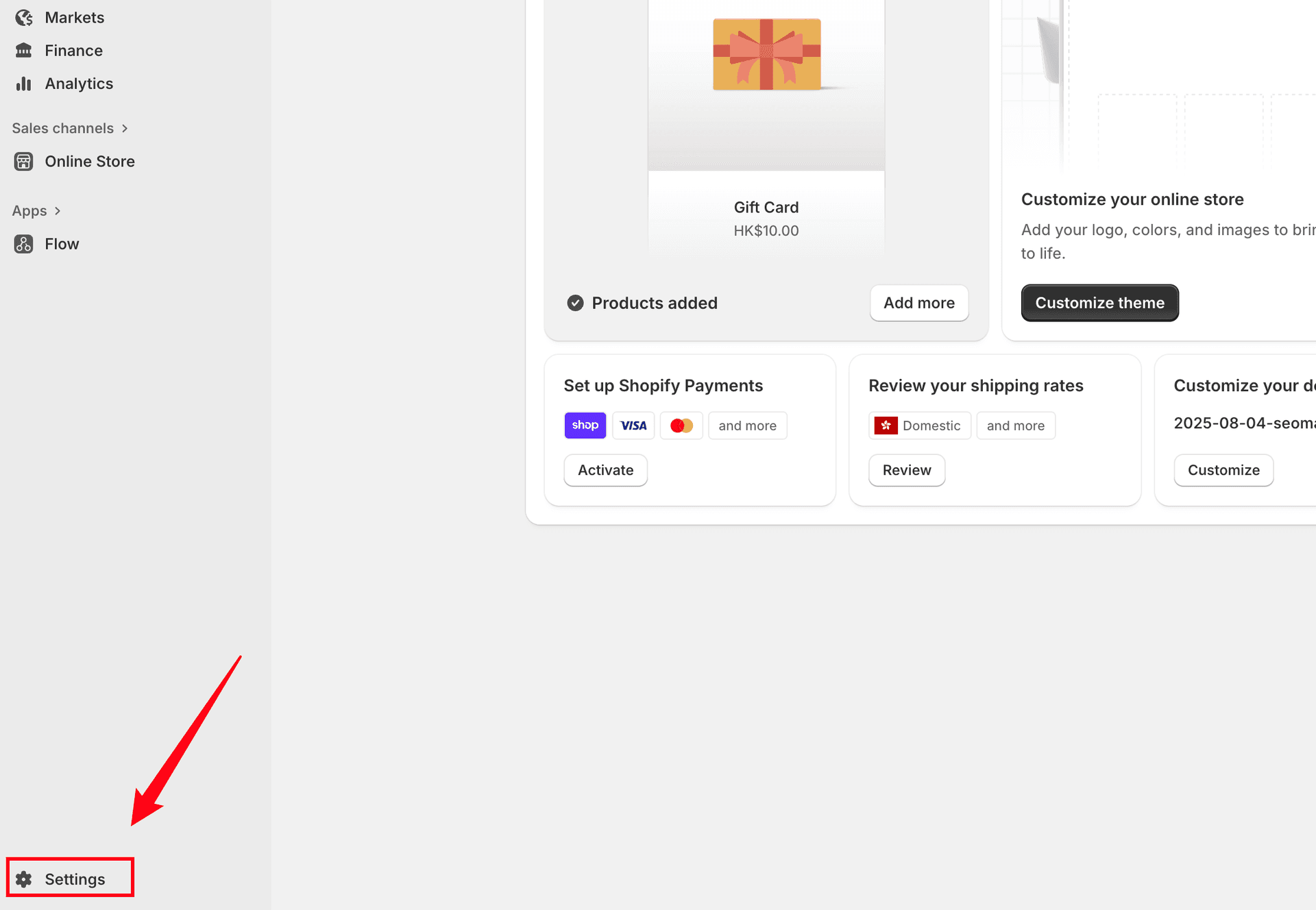
Step 1: Access Settings
Navigate to your Shopify admin dashboard and click Settings in the bottom left corner:
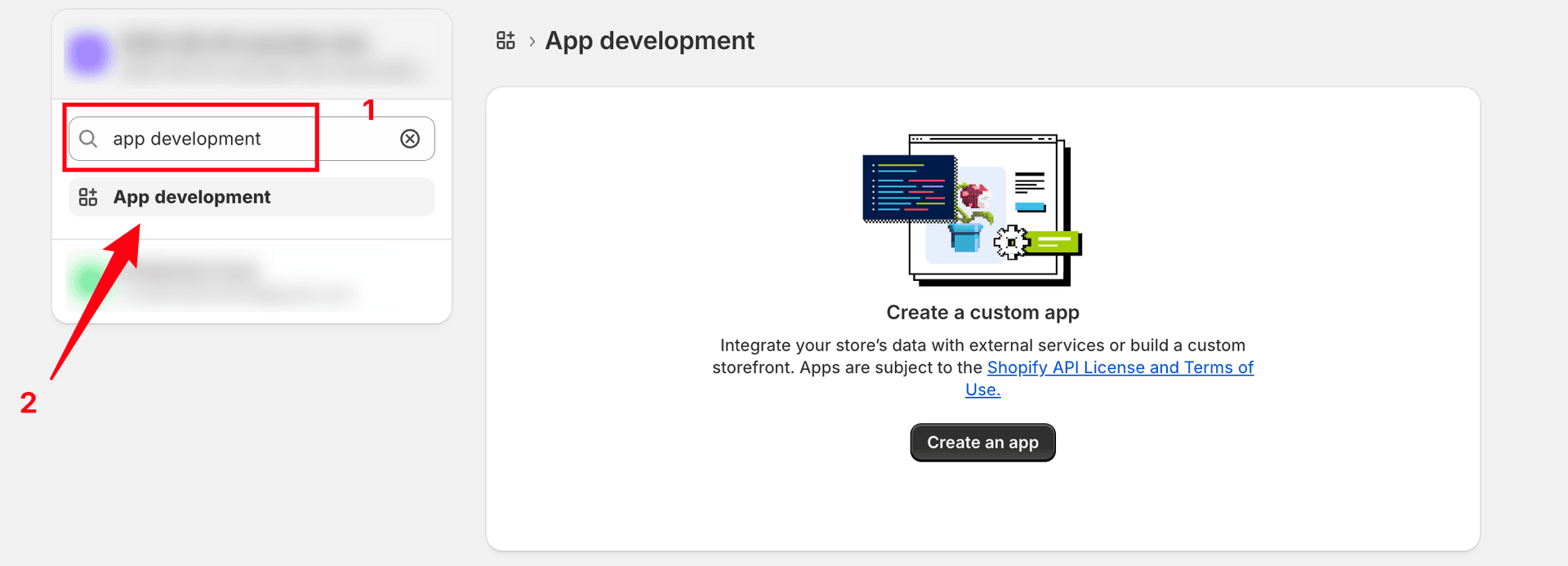
Step 2: Navigate to App Development
In the Settings page, search for "app development" and click on it:
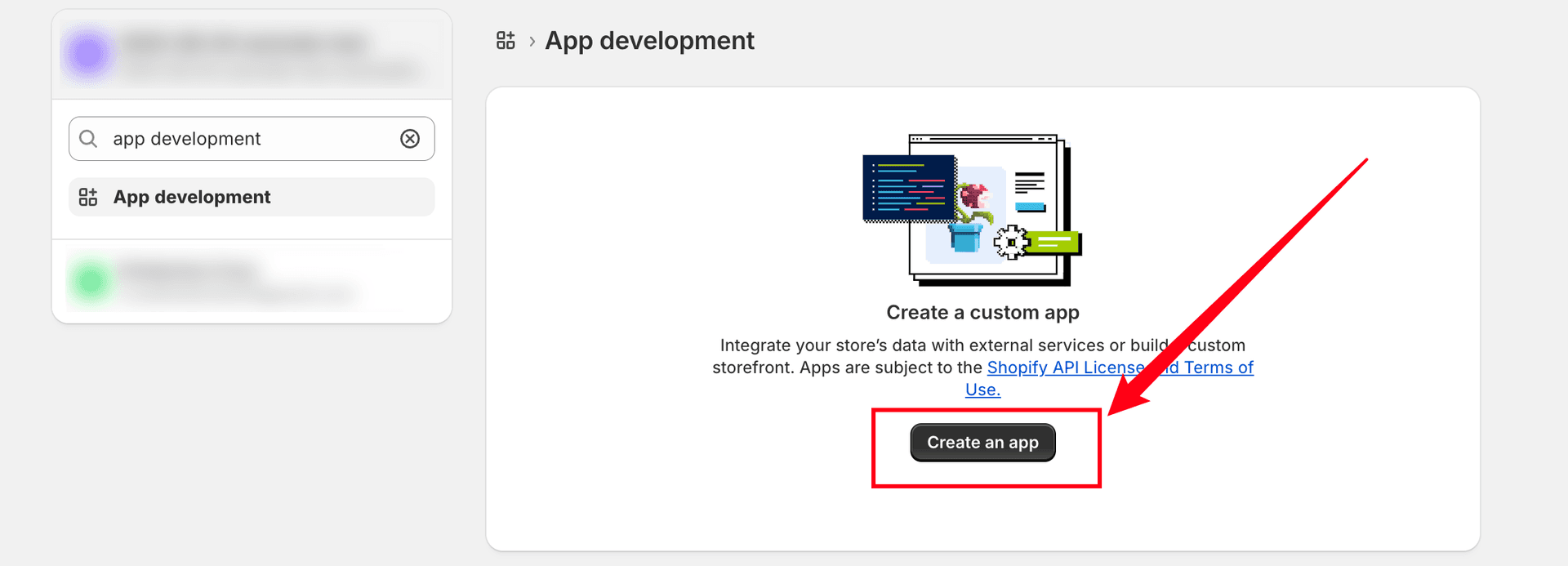
Step 3: Create a Custom App
Click the Create an app button:
Step 4: Name Your App
Enter "SEOMATE" as the app name and click Create app:
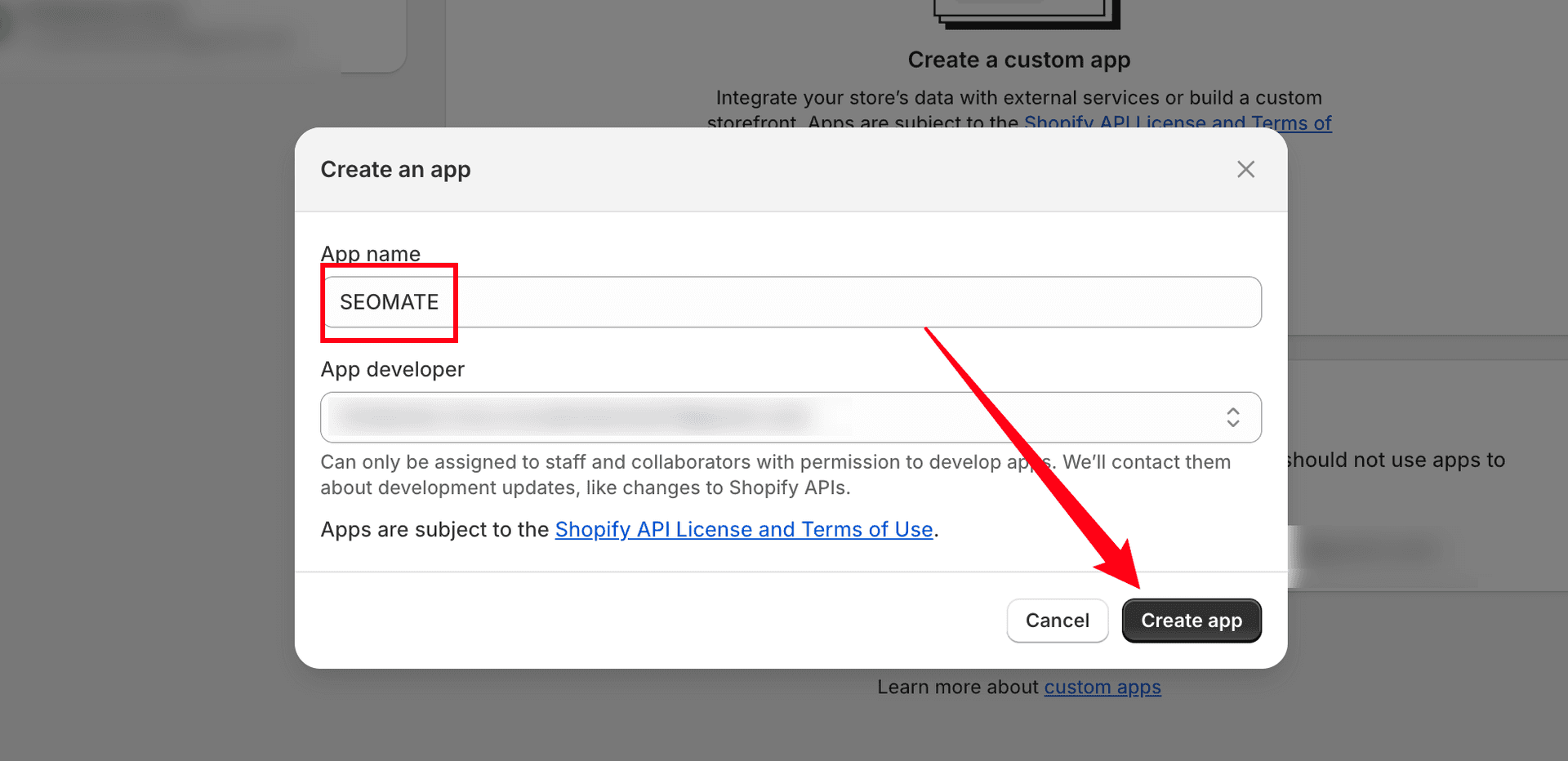
You can leave the App developer field empty - it's optional and only used for notifications about API changes.
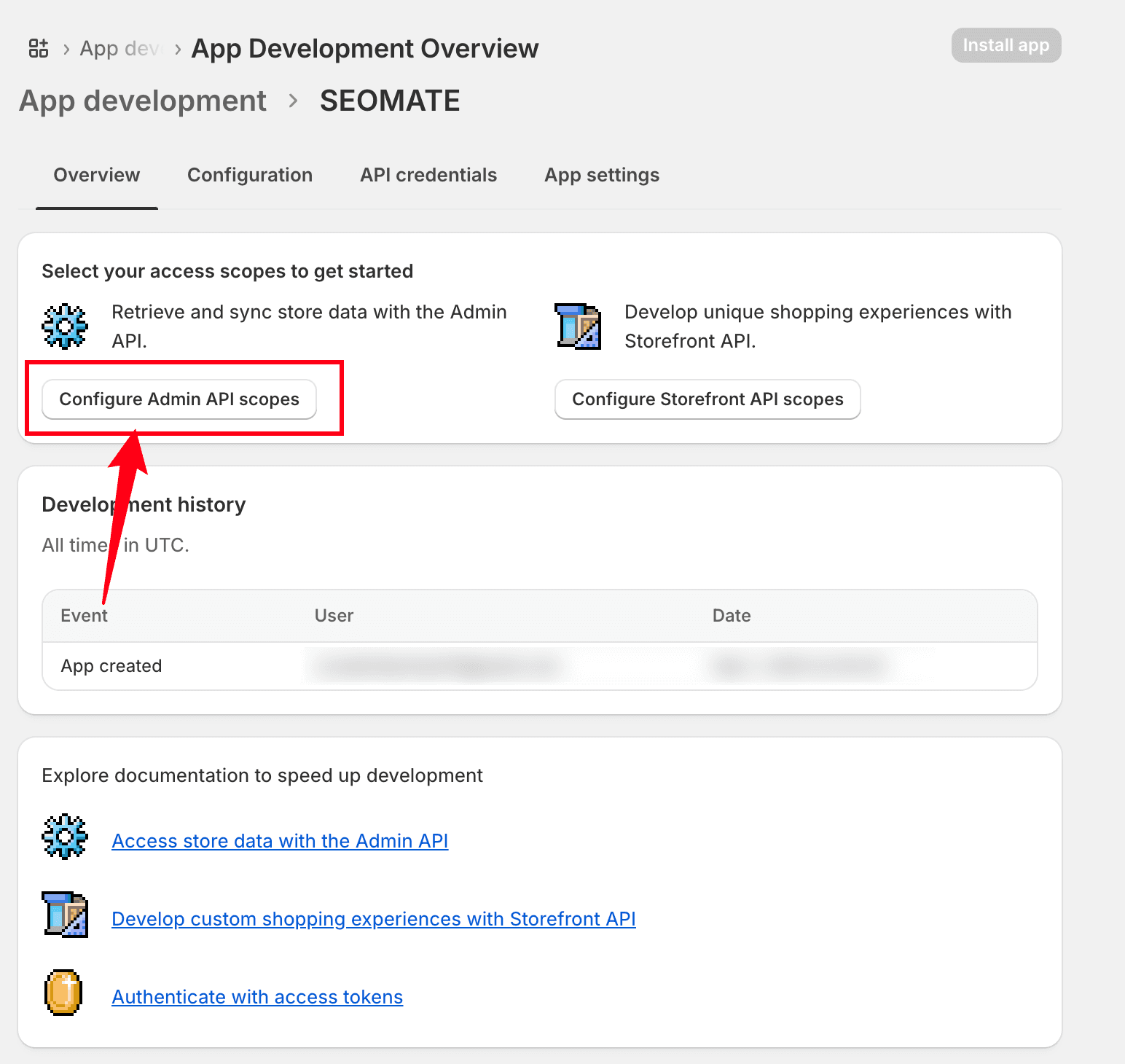
Step 5: Configure Admin API Scopes
After creating the app, click Configure Admin API scopes:
Step 6: Set Permissions
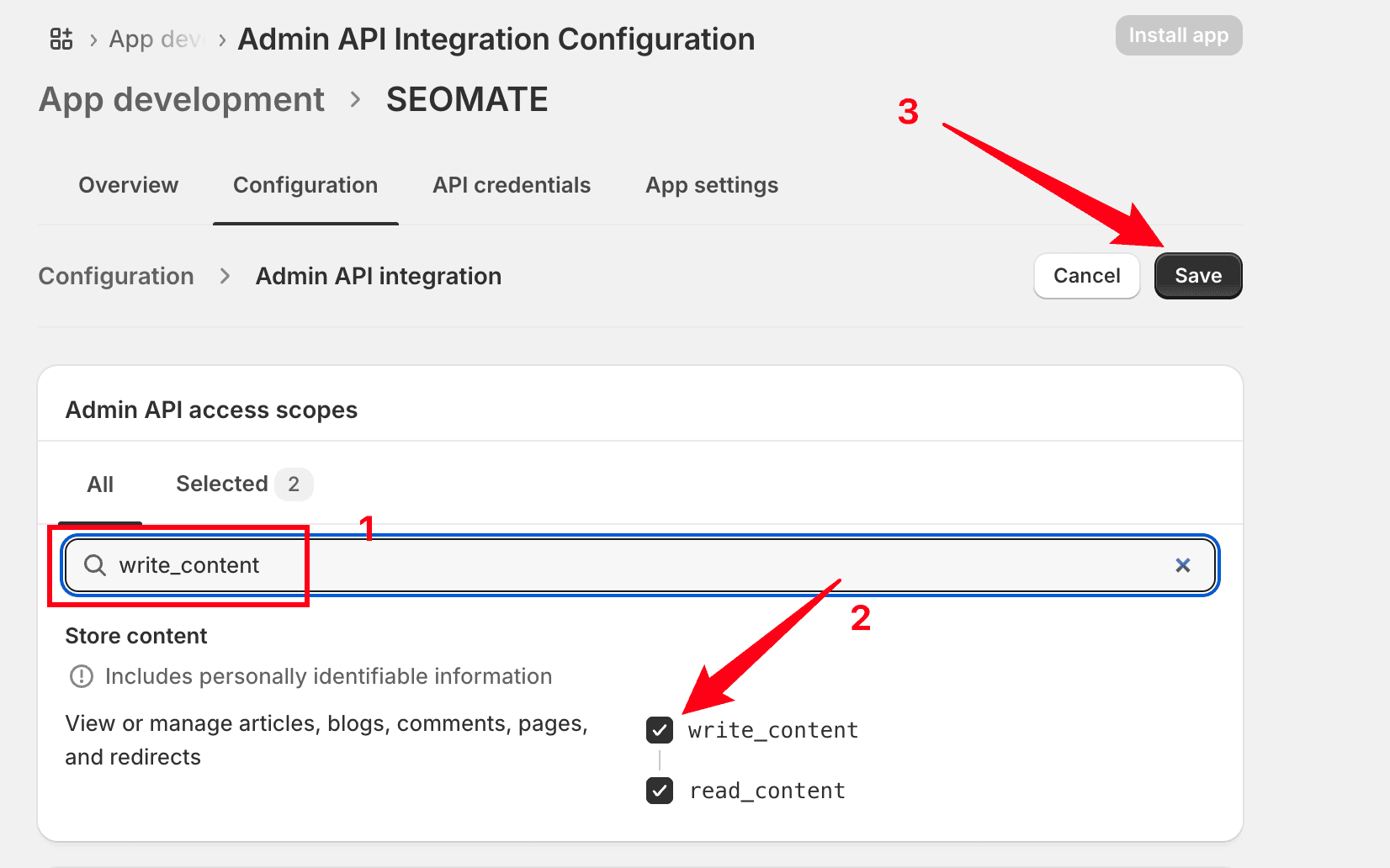
Search for "write_content" and select both permissions:
- ✅ write_content - Create and modify blog content
- ✅ read_content - View blog content
Then click Save:
Step 7: Install the App
Navigate to the API credentials tab and click Install app:
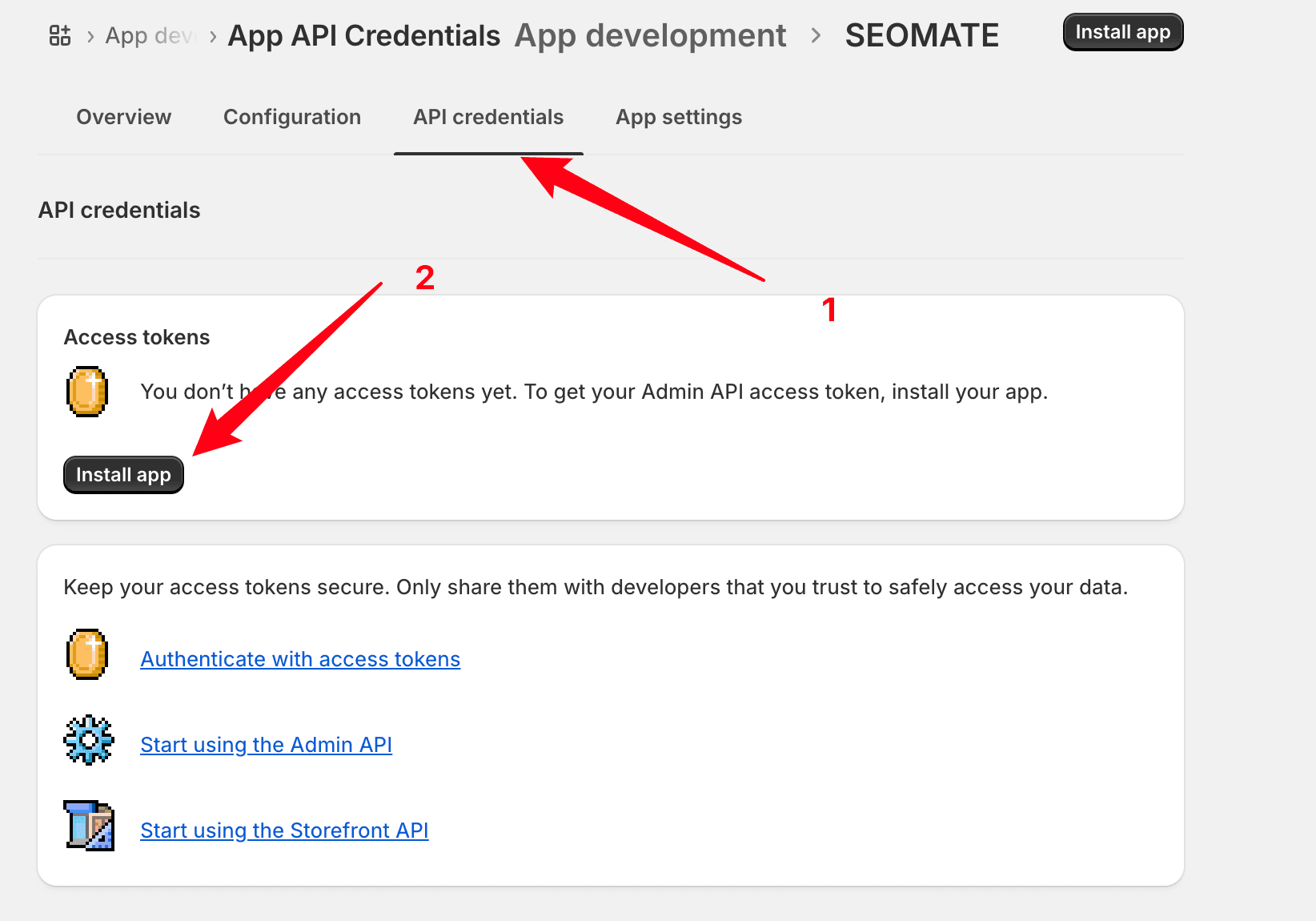
After installing, you'll see a "Reveal token once" button. The token can ONLY be viewed once after revealing. Copy and save it immediately in a secure location.
If you forget to save it: You can uninstall and reinstall the app to generate a new token.
Step 8: Reveal and Copy Your Access Token
Click Reveal token once and immediately copy the token:
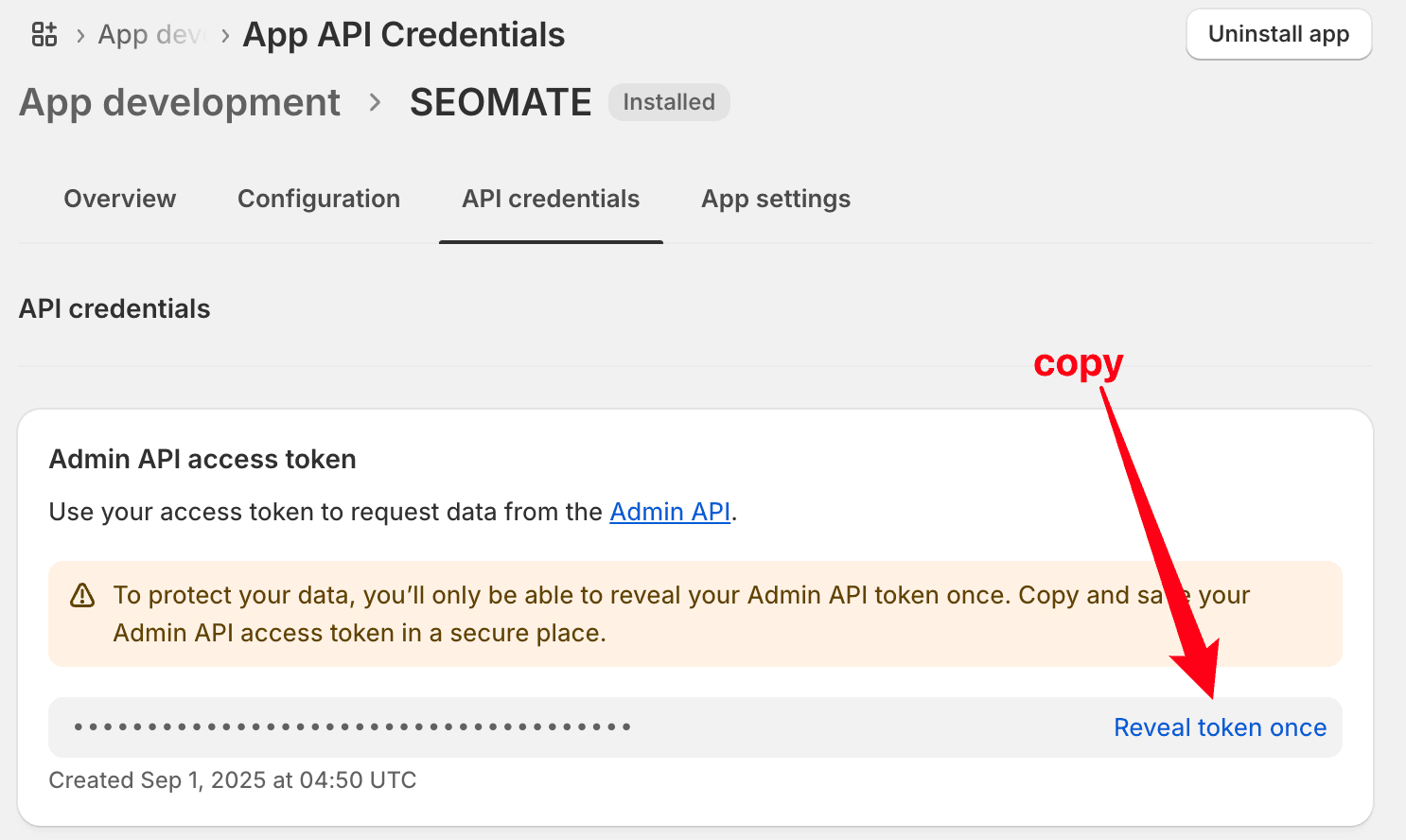
The token will start with
shpat_ followed by a
long string of characters.
Step 9: Configure in SeoMate
Now add your Shopify integration to SeoMate:
- Go to Settings → Publishing
- Click Connect Shopify
- Enter your credentials:
- Store Domain: Your Shopify store URL (e.g.,
your-store.myshopify.com) - Admin API Access Token: The token you just copied
- Integration Name: A friendly name for this connection
- Store Domain: Your Shopify store URL (e.g.,
Step 10: Test and Save
- Click Test Connection to verify your setup
- Once successful, click Save Integration
Integration Complete!
Your Shopify blog is now connected to SeoMate. You can start publishing AI-generated content directly to your store.
Ready to Connect Shopify?
Follow the steps above to integrate your Shopify blog with SeoMate and start automating your content publishing.