Connect Ghost to SeoMate
Publish AI-generated content directly to your Ghost blog
Quick Setup Overview
Settings
→
Integrations
→
Add custom integration
→
Copy Admin API Key
Takes about 2 minutes to complete the integration setup.
Prerequisites
✓ Ghost blog (self-hosted or Ghost Pro)
✓ Admin access to your Ghost site
✓ Your Ghost site URL
Step-by-Step Setup
Step 1: Access Ghost Admin Settings
Log in to your Ghost admin panel and click the Settings gear icon in the bottom left corner of the sidebar:
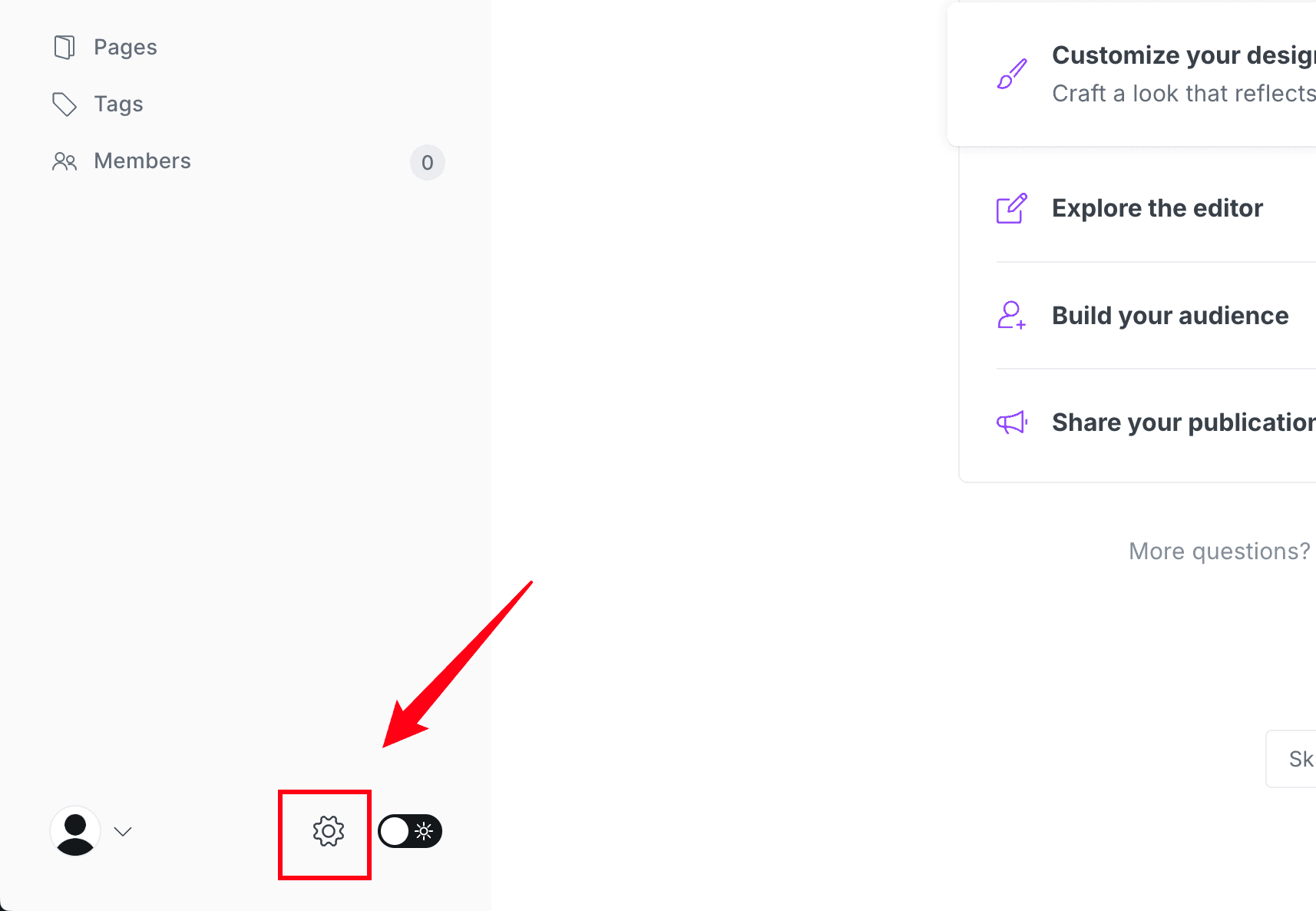
The settings icon is always located at the bottom of the left sidebar in Ghost Admin.
Step 2: Navigate to Integrations
In the Settings menu, scroll down and click on Integrations:
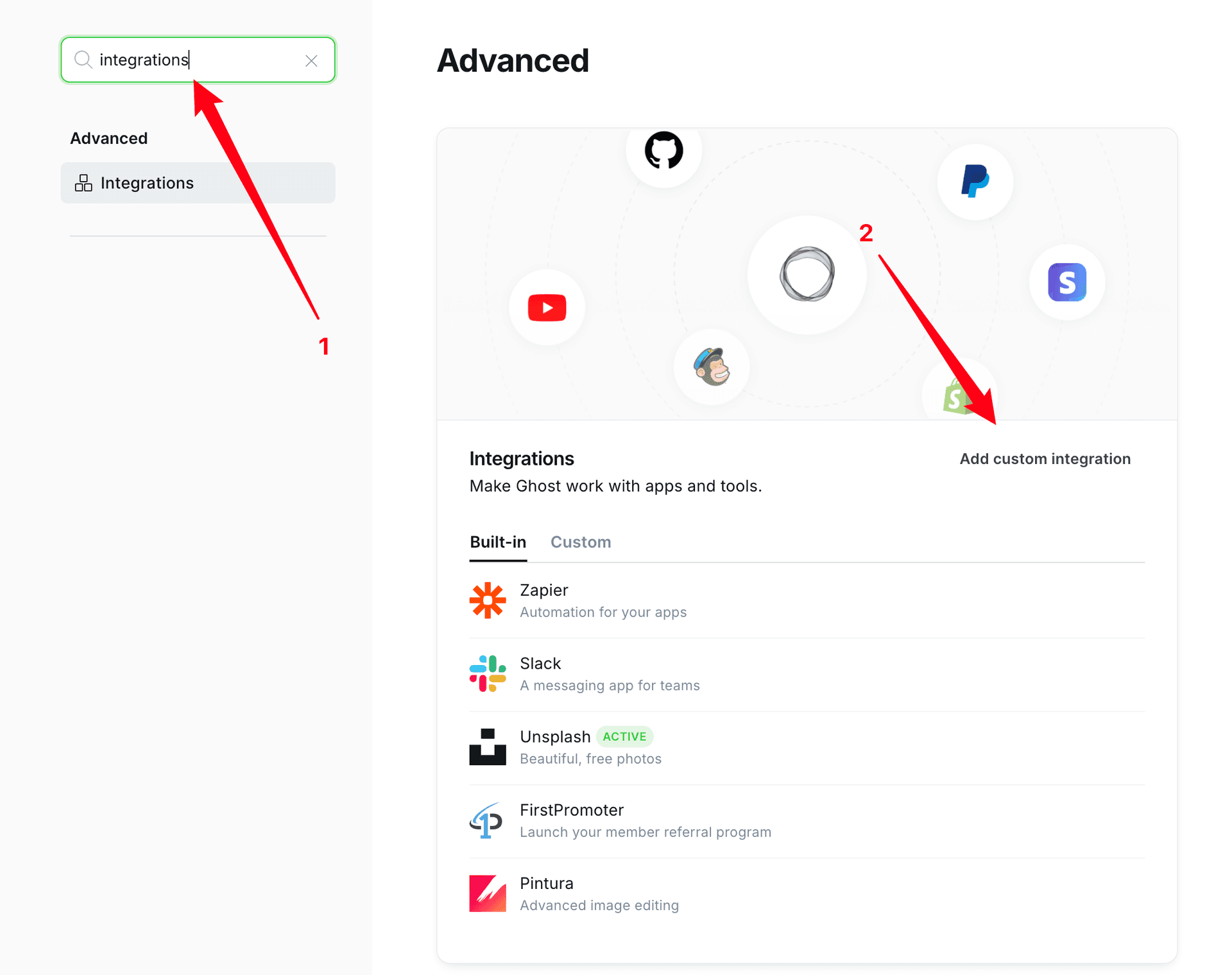
You'll see a list of available integrations. Scroll down to find the Add custom integration button at the bottom of the page.
Step 3: Create Custom Integration
Click Add custom integration and enter a name for your integration:
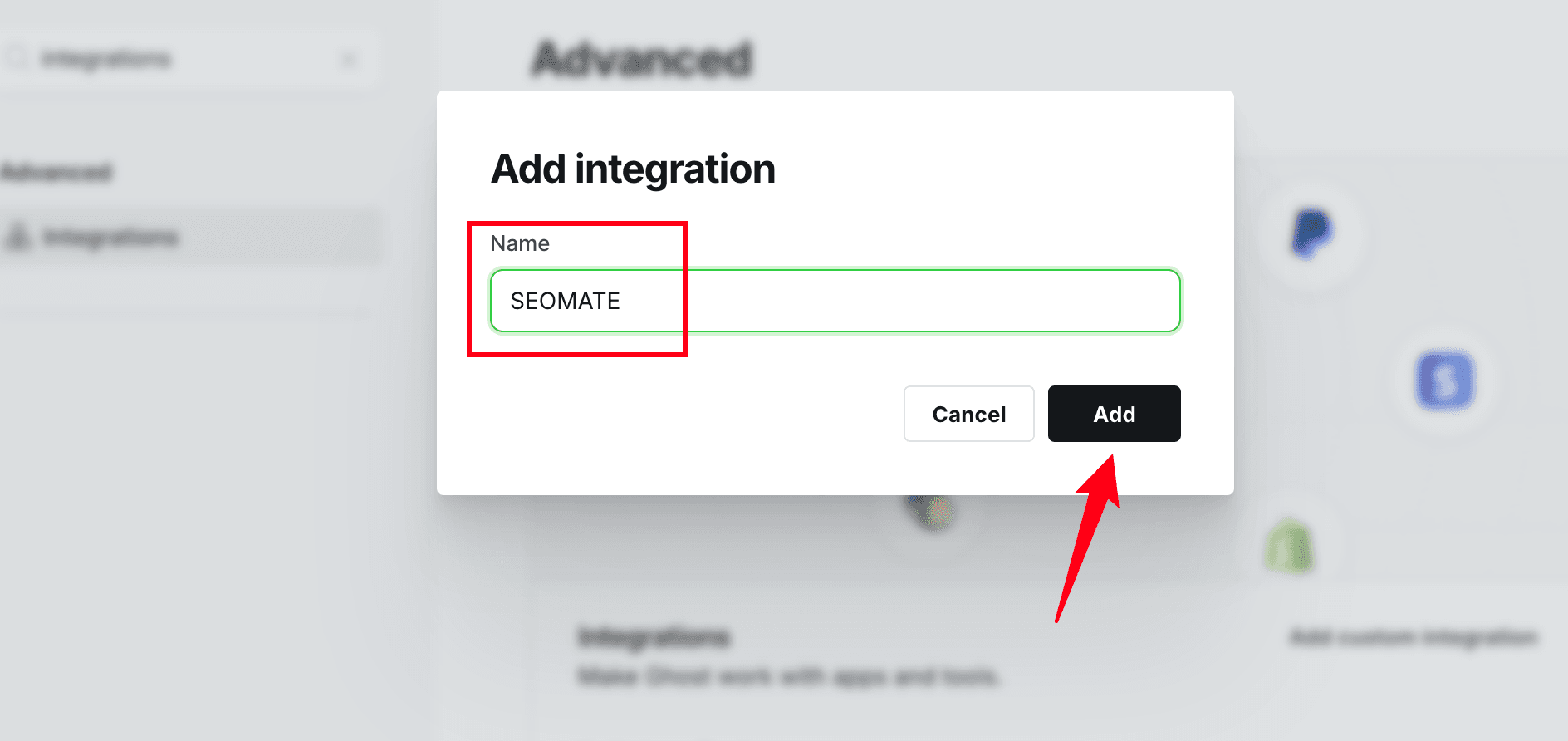
Step 4: Copy Your Admin API Key
After creating the integration, you'll see your API credentials. You need the Admin API key (not the Content API key):
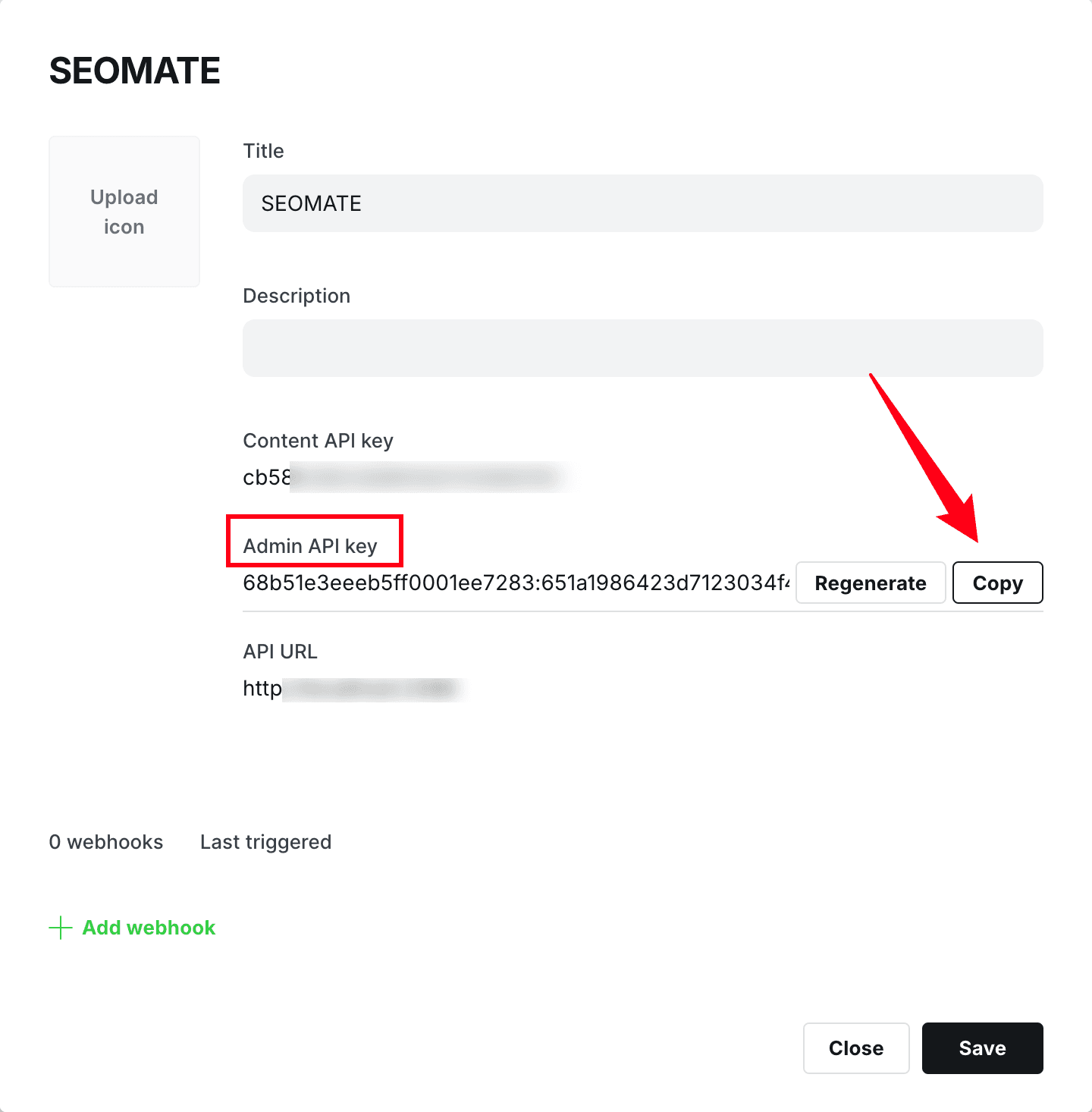
Click the Copy button next to the Admin API key. This key allows SeoMate to publish content to your Ghost blog.
The key is in format
id:secret (e.g.,
68b51e3eeeb5ff0001ee7283:651a1986423d7123034f4...
)
Step 5: Configure in SeoMate
Now switch to your SeoMate dashboard:
- Go to Settings → Publishing
- Click Connect Ghost
- Enter your credentials:
- Site URL: Your Ghost blog URL (SeoMate auto-removes
/ghostor/adminsuffixes) - Admin API Key: Paste the key you copied
- Ghost Version: Select v5 (recommended for Ghost 5.x and 6.x)
- Site URL: Your Ghost blog URL (SeoMate auto-removes
Step 6: Test and Save
- Click Test Connection to verify your setup
- Once you see "Connection successful!", click Save Integration
Integration Complete!
Your Ghost blog is now connected to SeoMate. You can start publishing AI-generated content directly to your blog.
Ready to Connect Ghost?
Follow the steps above to integrate your Ghost blog with SeoMate and start publishing AI-generated content automatically.