Sanity Setup Guide
Connect SEOmate with your Sanity CMS to publish content directly
TL;DR - Quick Setup Path
Access Sanity Settings
→Create API Token
→Copy Credentials
→Configure SEOmate
Go to manage.sanity.io → Create API token with Editor permissions → Copy token & Project ID → Add to SEOmate integration settings
Requirements
✓ Sanity project admin access
✓ A Sanity project with content schemas
✓ Basic understanding of Sanity CMS
Setup Steps
Step 1: Access Sanity Dashboard Settings
First, you need to access your Sanity project settings to create an API token.
Go to your Sanity Management Console and select your project.
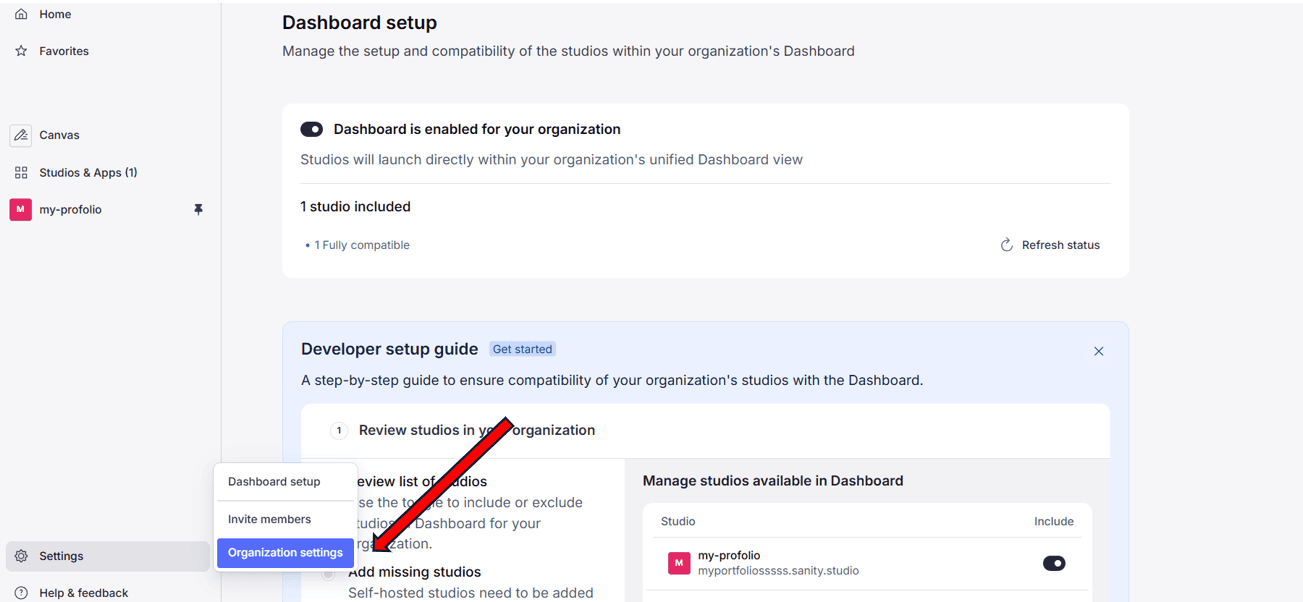
Navigate to the Settings section in your project dashboard.
Step 2: Find Your Project Information
Locate your project details in the settings page. You'll need both the Project ID and Dataset name for the integration.
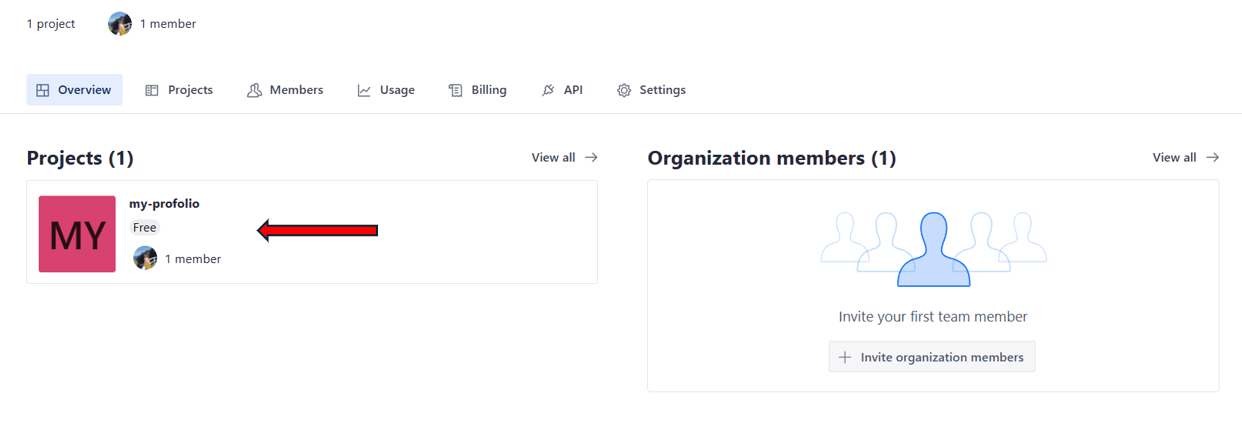
Make note of:
- Project ID: A unique identifier for your Sanity project
- Dataset: Usually "production" unless you're using a different dataset
Step 3: Create API Token
In the project settings, navigate to the API section and click on Tokens.
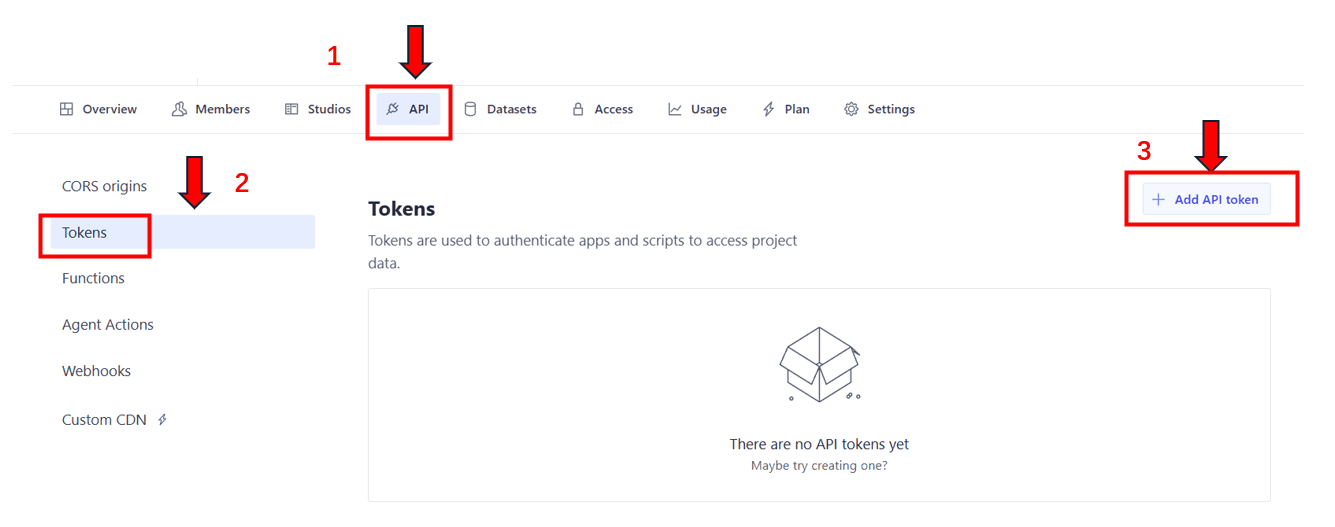
Click the Add API token button to create a new token.
Step 4: Configure Token Permissions
When creating the API token, you need to set the appropriate permissions for SEOmate to work properly.
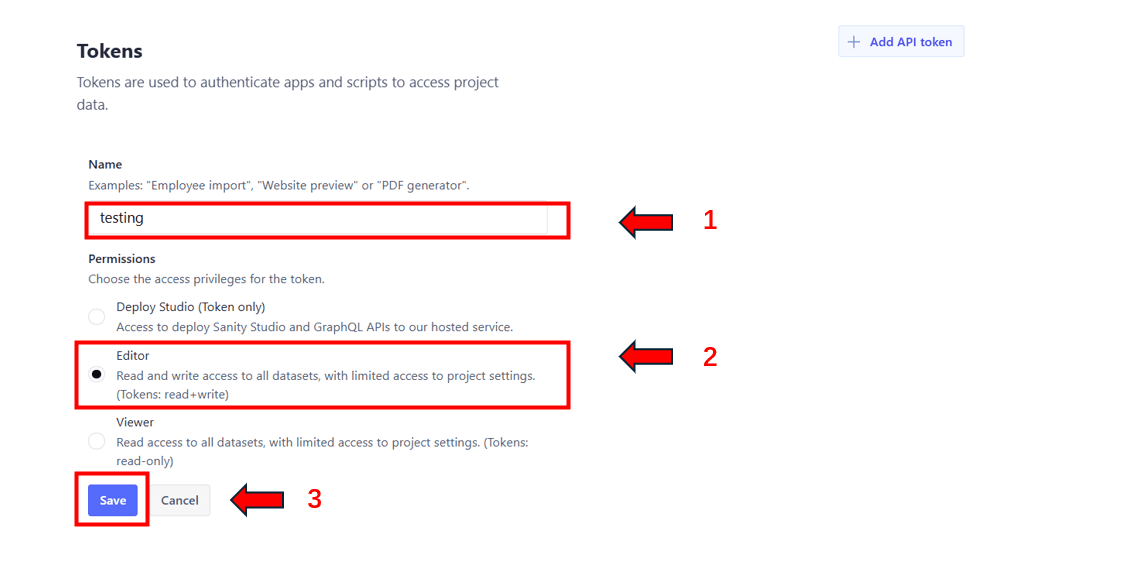
Important settings:
- Token name: Enter
SEOmate Integration - Permissions: Select
Editor(required for creating and updating content) - Description: Optional, but helpful for future reference
Click Save to create the token.
Step 5: Copy API Token
After creating the token, you'll see the token value. This is the only time you'll be able to see the full token.
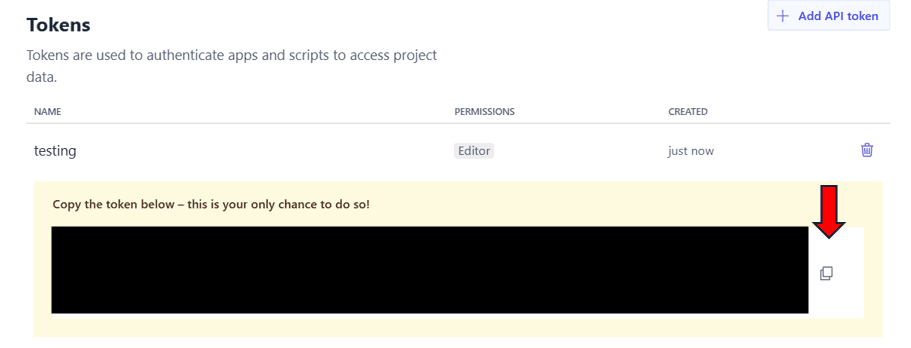
Critical action:
- Click Copy token to copy the full API token
- Save it securely - you won't be able to see it again
- The token typically starts with
sk
Security reminder: The API token has write access to your Sanity project. Keep it secure and don't share it publicly.
Step 6: Copy Project ID and Dataset Name
Go back to the project overview and copy your Project ID and Dataset name.
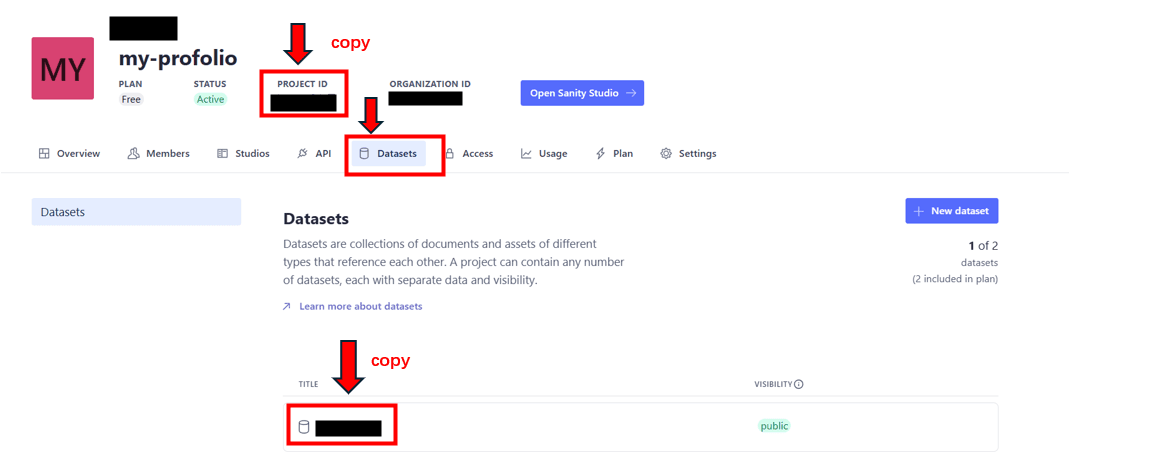
You'll need:
- Project ID: The unique identifier (usually alphanumeric)
- Dataset: Usually "production" or your custom dataset name
Step 7: Configure in SEOmate
Now you can complete the integration setup in SEOmate.
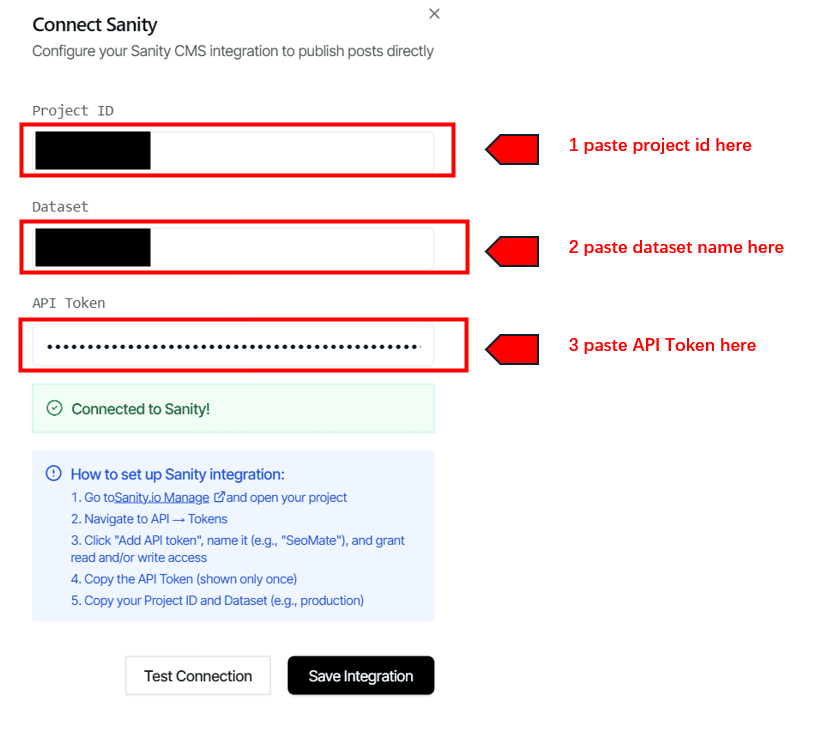
- Go to Project Settings → Publishing Platforms
- Click Add Sanity Integration
- Fill in the following information:
- API Token: Paste the token copied from step 5
- Project ID: Enter your Sanity project ID
- Dataset: Enter your dataset name (usually "production")
- Click Test Connection to verify the configuration
- Configure content type mapping (system will detect your schemas)
- Click Save Integration
Configuration Reference
sk_xxxxxx...abc123def...productionTroubleshooting FAQ
API Token invalid
Check that the token was copied completely with no extra spaces. Token should start with "sk_".
Permission denied errors
Make sure the API token has "Editor" permissions. "Viewer" permissions are not sufficient for publishing content.
Project not found
Verify the Project ID is correct and matches exactly what's shown in your Sanity dashboard.
Dataset errors
Confirm the dataset name is correct (case-sensitive). Most projects use "production" as the default dataset.
Schema not found
Make sure your Sanity project has the appropriate content schemas defined for blog posts or articles.
Ready to connect Sanity?
Follow the steps above to configure your integration and start publishing AI-generated content to your Sanity CMS.