Notion Setup Guide
Connect SEOmate with your Notion database to publish content directly
TL;DR - Quick Setup Path
Create Internal Integration
→Copy Integration Token
→Share Database Access
→Get Database ID
Visit
notion.so/my-integrations
to create integration, copy token (starts with
ntn_
), share database with integration, and extract database ID from URL.
Requirements
✓ Notion workspace admin access
✓ A Notion database for your content
✓ Basic understanding of Notion
Setup Steps
Step 1: Create Internal Integration
First, you need to create an internal integration in Notion to gain API access.
Visit the Notion Integrations page and click the "New integration" button.
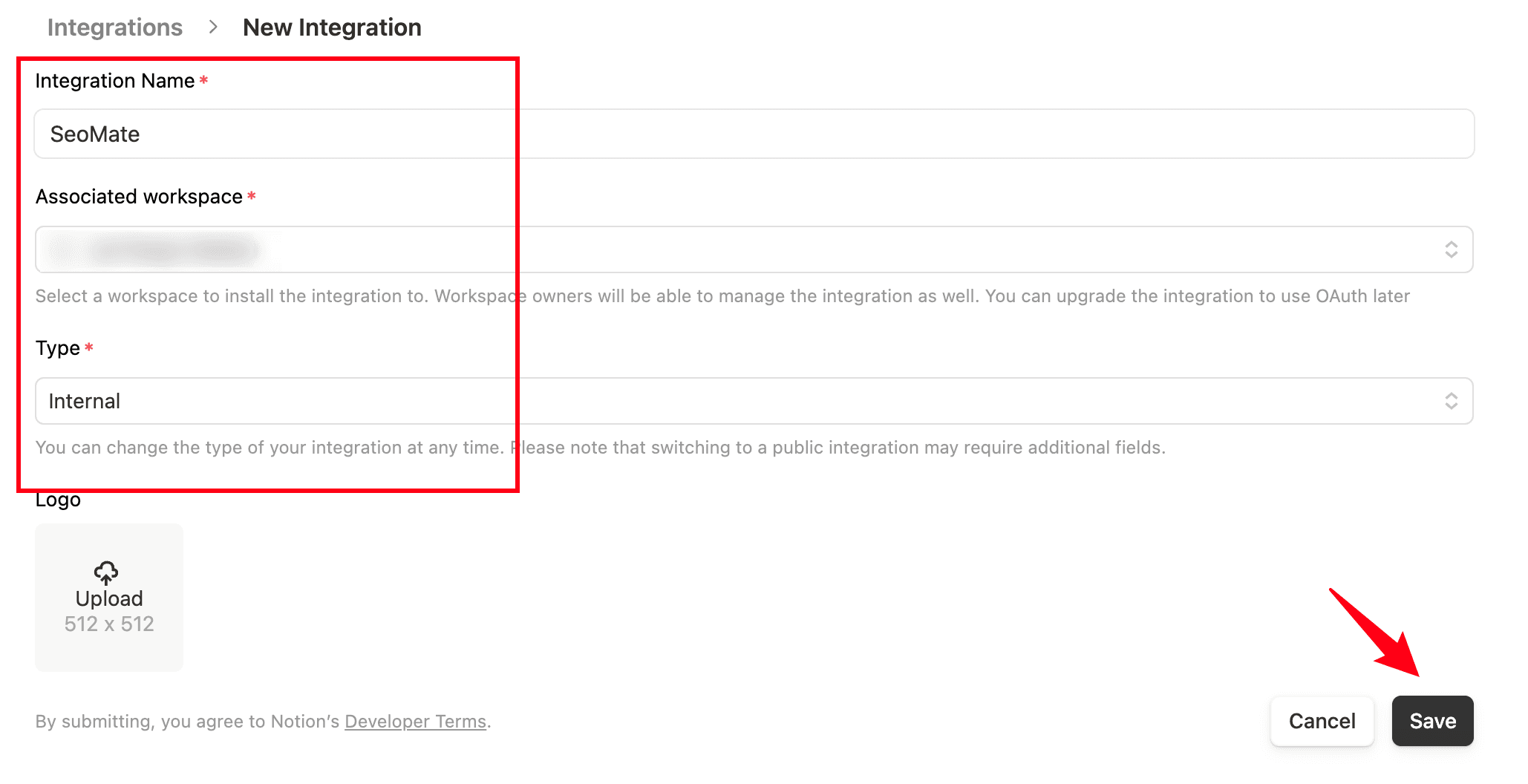
Fill in the integration information:
- Integration Name: Enter
SeoMate - Associated workspace: Select your workspace
- Type: Select
Internal
Click the Save button to save the settings.
Step 2: Get Integration Token and Configure Permissions
After creation, you'll see the integration's configuration page.
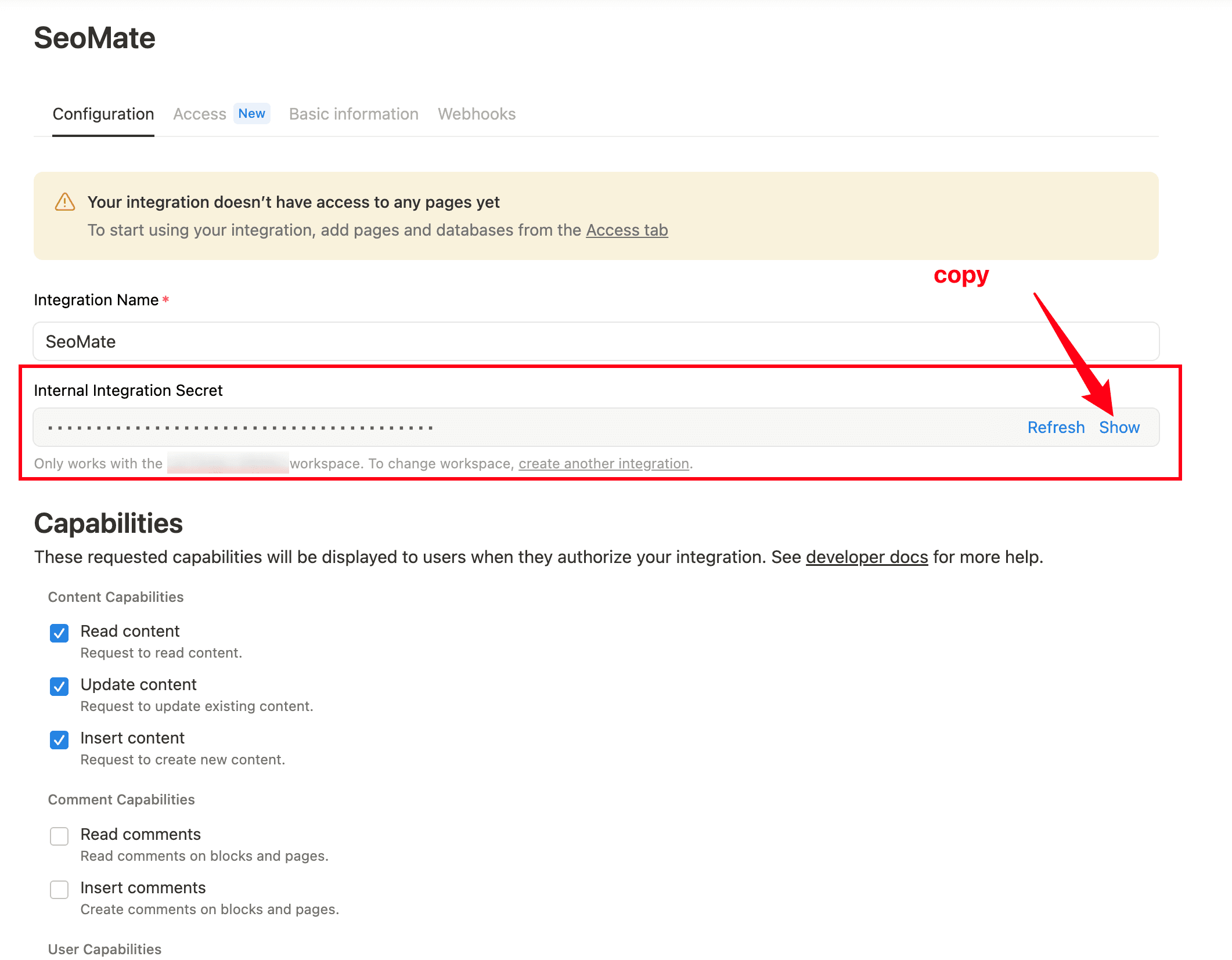
Important actions:
-
Copy Internal Integration Secret
- Click the Show button to display the full token
- Click copy to copy the token (starts with
ntn_) - Save securely, this is the key credential for connecting SEOmate
-
Confirm permission settings
- ✅ Read content - Read content permission
- ✅ Update content - Update content permission
- ✅ Insert content - Create content permission
Security reminder: The Internal Integration Secret has access to your Notion data. Keep it secure and don't share it publicly.
Step 3: Connect Integration to Database
Now you need to connect the SeoMate integration to your Notion database. This is the most critical step - without proper authorization, subsequent operations will fail.
- Open the Notion database page you want to connect
- Click the ··· menu in the top right corner
- Find the Connections section in the popup menu
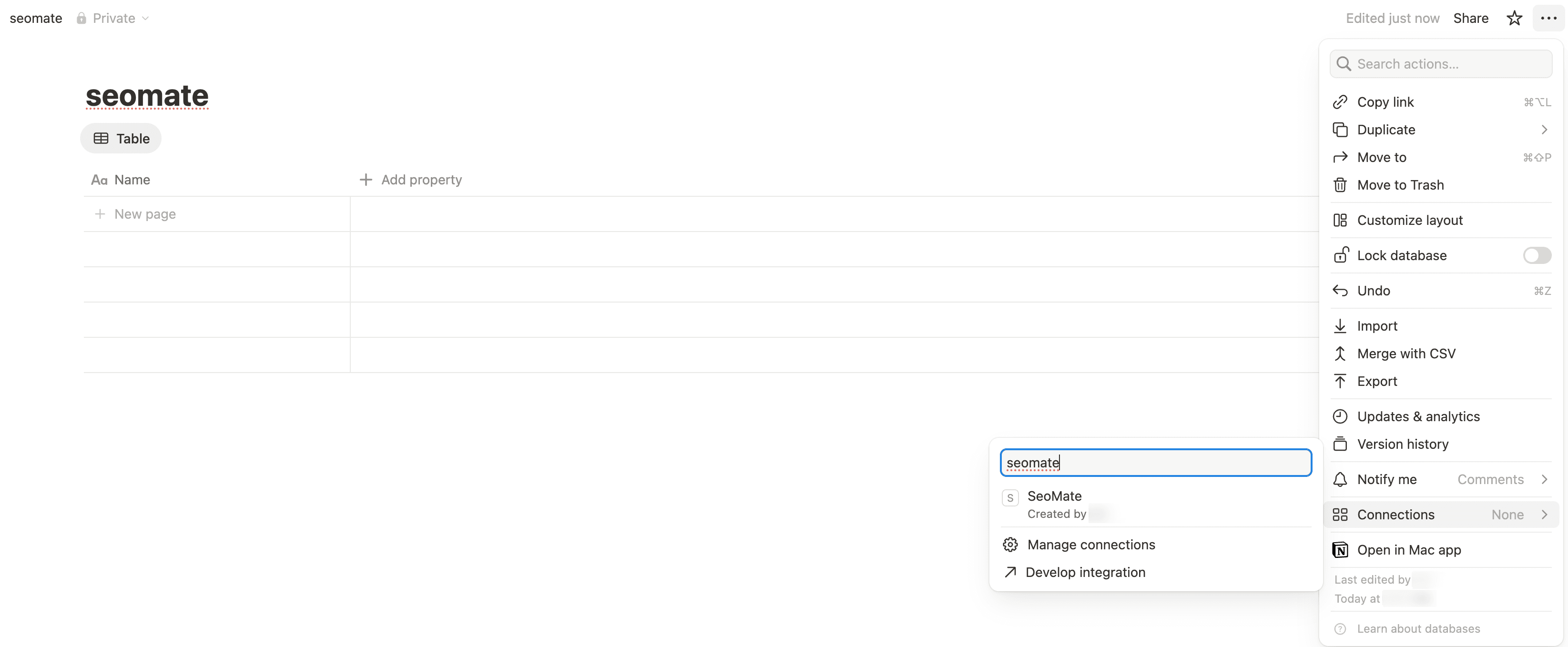
- You should see SeoMate appear in the connections list
- If you don't see it, click Manage connections to add the integration
- Select SeoMate and confirm authorization
Permission note: Only the database creator or users with full edit permissions can add integration connections. If you don't see the "Connect to" option, contact the database administrator.
Step 4: Get Database ID
Each Notion database has a unique ID that SeoMate needs to access your database.
Quick tip: In the SeoMate configuration interface, you can directly paste the full Notion URL and the system will automatically extract the Database ID! No manual extraction needed.
Manual extraction method:
- Open the target database page
- Copy the URL from the browser address bar
- Extract the Database ID from the URL
URL format example:
https://www.notion.so/workspace/a1b2c3d4e5f6789012345678901234567890abcd?v=...
The Database ID is the 32-character alphanumeric string in the middle: a1b2c3d4e5f6789012345678901234567890abcd
Step 5: Configure in SeoMate
Now that you have all the necessary information, you can complete the configuration in SeoMate.
- Go to Project Settings → Publishing Platforms
- Click Add Notion Integration
- Fill in the following information:
- Internal Integration Token: Paste the token copied from step 2
- Database ID or URL: Paste the database URL (system will automatically extract ID)
- Click Test Connection to verify the configuration
- Configure field mapping (system will automatically recognize most fields)
- Click Save Integration
Configuration Reference
Integration Token:
ntn_xxxxxx...a1b2c3d4e5f6...
Troubleshooting FAQ
Can't see "Connect to" option
Make sure you have full editing permissions for the database. Only database creators or administrators can add integration connections.
Integration Token invalid
Check that the Token was copied completely with no extra spaces. Token typically starts with "ntn_".
Can't find Database ID
Make sure you're accessing a database page, not a regular page. Database URLs have a different format from regular pages.
Connection test failed
Check your network connection, confirm the Integration is properly authorized for the target database, and verify the Database ID format is correct.
Ready to connect Notion?
Follow the steps above to configure your integration and start publishing AI-generated content to your Notion workspace.